



Computer Workstation Ergonomics
Millions of people work with computers every day. This blog illustrates simple, inexpensive principles that will help you create a safe and comfortable computer workstation. There is no single “correct” posture or arrangement of components that will fit everyone. However, there are basic design goals, some of which are shown in the accompanying figure, to consider when setting up computer workstation ergonomics or performing computer-related tasks.
Consider your workstation as you read through each section and see if you can identify areas for improvement in posture, component placement, or work environment. This workstation ergonomics guide provides suggestions to minimize or eliminate identified problems, and allows you to create your own “custom-fit” computer workstation. Workstation ergonomics isn’t difficult, this guide will improve your risk management for your office.
Contact GDI Insurance Agency, inc. for a comprehensive office insurance quote! 209-634-2929
Download our complete Computer Workstation Ergonomics Guide Today!

Good Working Ergonomics
To understand the best way to set up a computer workstation, it is helpful to understand the concept of neutral body positioning. This is a comfortable working posture in which your joints are naturally aligned. Working with the body in a neutral position reduces stress and strain on the muscles, tendons, and skeletal system and reduces your risk of developing a musculoskeletal disorder (MSD). The following are important considerations when attempting to maintain neutral body postures while working at the computer workstation


- Hands, wrists, and forearms are straight, in-line and roughly parallel to the floor.
- Head is level, forward facing, and balanced. Generally it is in-line with the torso.
- Shoulders are relaxed and upper arms hang normally at the side of the body.
- Elbows stay in close to the body and are bent between 90 and 120 degrees.
- Feet are fully supported by the floor or a footrest may be used if the desk height is not adjustable.
- Back is fully supported with appropriate lumbar support when sitting vertical or leaning back slightly.
- Thighs and hips are supported and generally parallel to the floor.
- Knees are about the same height as the hips with the feet slightly forward
Regardless of how good your working posture is, working in the same posture or sitting still for prolonged periods is not healthy. You should change your working position frequently throughout the day in the following ways:
- Make small adjustments to your chair or backrest.
- Stretch your fingers, hands, arms, and torso.
- Stand up and walk around for a few minutes periodically.
- Perform some of your tasks in standing: computing, reading, phone, meetings.
These four reference postures are examples of body posture changes that all provide neutral positioning for the body.


Components of Workstation Ergonomics
Appropriate placement of the components and accessories for the desktop computer workstation will allow you to work in neutral body positions, help you perform more efficiently, and work more comfortably and safe.
A laptop workstation creates special challenges due to its computer design, size, and the variety of areas in which it is used. While many aspects of this guide will be applicable to laptops, special considerations may be necessary when working with laptop units.
The following sections explain how to select and arrange specific workstation components:
Properly Adjust Your Chair
A chair that is well-designed and appropriately adjusted is an essential element of a safe and productive computer workstation. A good chair provides necessary support to the back, legs, buttocks, and arms, while reducing exposures to awkward postures, contact stress, and forceful exertions.
Increased adjustability ensures a better fit for the user, provides adequate support in a variety of sitting postures, and allows variability of sitting positions throughout the workday. This is particularly important if the chair has multiple users.
To ensure that the chair will provide adequate support, it is important that you try out different chairs before purchasing one.
The following parts of the chair are important elements to consider in creating a safe and productive workstation:
- Backrest
- Seat
- Armrest
- Base
You should adjust your chair along with appropriately placing your monitor, keyboard, and desk.

Workstation Ergonomics and Your Desk Setup
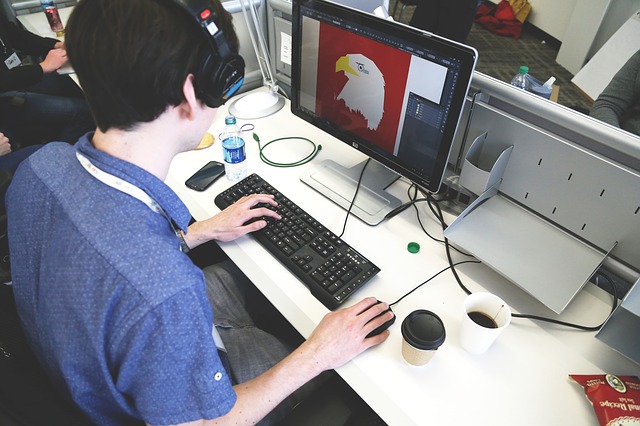
A well-designed and appropriately-adjusted desk will provide adequate clearance for your legs, allow proper placement of computer components and accessories, and minimize awkward postures and exertions.
The clearance space under the work surface should provide adequate room for the users legs when in the upright seated posture and at least one other of the seated reference postures. This can be accomplished by using Method 1 or Method 2.
Method 1 – Upright and Reclined Seated Postures
The following dimensions represent clearances that accommodate the majority of users (5th percentile female to 95th percentile male) when in a seated posture where the top of the legs are about parallel with the floor.
Minimum Dimensions
- 20 inches (52 cm) wide.
- 17 inches (44 cm) deep at knee level.
- 24 inches (60 cm) deep at foot level.
- 4 inches (10 cm) high at the foot.
Variable Dimensions
- Height is adjustable between 20 and 27 inches (50 and 69 cm) near the user.
Method 2 – Upright, Reclined, and Declined Seated Postures
The following dimensions accommodate the largest operator clearance spaces (5th percentile female to 95th percentile male). Thus, specifications conforming with Method 2 will meet Method 1 requirements. This method also includes postures where the knee is slightly lower than the buttocks (declined-seated).
Variable Dimensions
- Adjustable between 20 and 28 inches (50 and 72 cm) high at the hip.
- Adjustable between 20 and 25 inches (50 and 64 cm) high near the user’s knee.
Wrist/Palm Supports
Proper arrangement of the keyboard and mouse help create a comfortable and productive workstation. Wrist or palm rests can also increase your comfort.
Although opinions vary regarding the use of wrist/palm supports, proper use has been shown to reduce muscle activity and to facilitate neutral wrist angles.


WORK PROCESS AND RECOGNITION
Even when the design of the workstation ergonomics is correct and environmental factors are at their best, users can face risks from task organization which can intensify the impact of other risk factors, such as repetition. Additionally, failing to recognize early warning signs could allow small problems to develop into serious injuries. Addressing task organization factors and medical awareness can help minimize the risk of developing musculoskeletal disorders (MSDs) and stop the progression to injury.
Prolonged Periods of Activity
Potential Hazard:
Computer work, whether it’s for a job or for fun, may appear to be a low effort activity when viewed from a total body perspective, but maintaining postures or performing highly repetitive tasks for extended periods can lead to problems in localized areas of the body. For example, using a mouse for a few minutes should not be a problem for most users, but performing this task for several uninterrupted hours can expose the small muscles and tendons of the hand to hundreds or even thousands of activations (repetitions). There may not be adequate time between activations for rest and recuperation, which can lead to localized fatigue, wear and tear, and injury. Likewise, maintaining static postures, such as viewing the monitor, for a prolonged period of time without taking a break can fatigue the muscles of the neck and shoulder that support the head.
Possible Solutions:
- Provide variation in tasks and workstations so
there is time to recover from the effects of activity. There are several ways
to provide recovery time for overused muscles.
- Utilize an adjustable workstation so users can easily change their working postures. The use of easily adjustable furniture, for example, allows you to frequently change seated postures, which allows different muscle groups to provide support while others rest.
- Ensure that there is enough work space so you can use each hand alternately to perform mouse tasks. This allows the tendons and muscles of the free hand to rest.
- Substitute keystrokes for mousing tasks, such as Ctrl+S to save, Ctrl+P to print. Especially if your job is highly mouse intensive.
- High repetition tasks or jobs that require long periods of static posture may require several, short rest breaks (micro breaks or rest pauses). During these breaks users should be encouraged to stand, stretch, and move around. This provides rest and allows the muscles enough time to recover.
- Alternate tasks whenever possible, mixing non-computer-related tasks into the workday. This encourages body movement and the use of different muscle groups.
Medical Awareness and Training
Potential Hazard:
Employees who have not been adequately trained to recognize hazards or understand effective work practices designed to reduce these hazards are at a greater risk of harm. Without proper medical awareness, Musculoskeletal Disorders (MSD) signs and symptoms may go unnoticed and un-addressed. For example, users who do not understand the risk of bad body postures or techniques do not have the knowledge to actively participate in their own protection. Detection and reporting delays can result in more severe injury.
Possible Solutions:
Computer users should take the time to obtain general ergonomics awareness training on the following issues:
- Factors related to specific computer components that may increase discomfort or risk of injury.
- Being aware of discomfort (signs and symptoms).
- How to correctly use and adjust components and environmental factors.
Download our complete Computer Workstation Ergonomics Guide Today!
WORKSTATION ERGONOMICS AND YOUR ENVIRONMENT
Appropriately placing lighting and selecting the right level of illumination can enhance your ability to see monitor images. For example, if lighting is excessive or causes glare on the monitor screen, you may develop eyestrain or headaches, and may have to work in awkward postures to view the screen. Ventilation and humidity levels in office work environments may affect user comfort and productivity.
Lighting
Potential Hazard:
Bright lights shining on the display screen “wash out” images, making it difficult to clearly see your work. Straining to view objects on the screen can lead to eye fatigue.
Possible Solutions:
- Place rows of lights parallel to your line of sight.
- Provide light diffusers so that desk tasks (writing, reading papers) can be performed while limiting direct brightness on the computer screen.
- Remove the middle bulbs of 4-bulb fluorescent light fixtures to reduce the brightness of the light to levels more compatible with computer tasks if diffusers or alternative light sources are not available. NOTE: a standard florescent light fixture on a nine-foot ceiling with four, 40-watt bulbs will produce approximately 50 foot-candles of light at the desktop level.
- Provide supplemental task/desk lighting to
adequately illuminate writing and reading tasks while limiting brightness
around monitors.
- Generally, for paper tasks and offices with CRT displays, office lighting should range between 20 to 50 foot-candles. If LCD monitors are in use, higher levels of light are usually needed for the same viewing tasks (up to 73 foot-candles).
Potential Hazard:
Bright light sources behind the display screen can create contrast problems, making it difficult to clearly see your work.
Possible Solutions:
- Use blinds or drapes on windows to eliminate bright light. Blinds and furniture placement should be adjusted to allow light into the room, but not directly into your field of view. NOTE: vertical blinds work best for East/West facing windows and horizontal blinds for North/South facing windows.
- Use indirect or shielded lighting where possible and avoid intense or uneven lighting in your field of vision. Ensure that lamps have glare shields or shades to direct light away from your line of sight.
- Reorient the workstation so bright lights from open windows are at right angles with the computer screen.
Potential Hazard:
High contrast between light and dark areas of the computer screen, horizontal work surface, and surrounding areas can cause eye fatigue and headaches.
Possible Solution:
- For computer work, use well-distributed diffuse
light. The advantage of diffuse lighting is that:
- There are fewer hot spots (or glare surfaces) in the visual field.
- The contrasts created by the shape of objects tend to be softer.
- Use light, matte colors and finishes on walls and ceilings to better reflect indirect lighting and reduce dark shadows and contrast.
Glare
Potential Hazard:
Direct light sources (for example, windows, overhead lights) that cause reflected light to show up on the monitor make images more difficult to see, resulting in eye strain and fatigue.
Possible Solutions:
- Place the face of the display screen at right angles to windows and light sources. Position task lighting (for example, a desk lamp) so the light does not reflect on the screen.
- Clean the monitor frequently. A layer of dust can contribute to glare.
- Use blinds or drapes on windows to help reduce glare. NOTE: vertical blinds work best for East/West facing windows and horizontal blinds for North/South facing windows.
- Use glare filters that attach directly to the surface of the monitor to reduce glare. Glare filters, when used, should not significantly decrease screen visibility. Install louvers, or “egg crates”, in overhead lights to re-direct lighting.
- Use barriers or light diffusers on fixtures to reduce glare from overhead lighting.
Potential Hazard:
Reflected light from polished surfaces, such as a keyboards, may cause annoyance, discomfort, or loss in visual performance and visibility.
Possible Solutions:
- To limit reflection from walls and work surfaces around the screen, paint them with a medium colored, non-reflective paint. Arrange workstations and lighting to avoid reflected glare on the display screen or surrounding surfaces.
- Tilt down the monitor slightly to prevent it from reflecting overhead light.
- Set the computer monitor for dark characters on a light background; they are less affected by reflections than are light characters on a dark background.
Ventilation
Potential Hazards:
- Users may experience discomfort from poorly designed or malfunctioning ventilation systems, for example, air conditioners or heaters that directly “dump” air on users.
- Dry air can dry the eyes (especially if the user wears contact lenses).
- Poor air circulation can result in stuffy or stagnant conditions.
- Temperatures above or below standard comfort levels can affect comfort and productivity.
Possible Solutions:
- Do not place desks, chairs, and other office furniture directly under air conditioning vents unless the vents are designed to redirect the air flow away from these areas.
- Use diffusers or blocks to redirect and mix air
flows from ventilation systems.
- Keep air flow rates within three and six inches per second (7.5 and 15 centimeters per second). These air flow rates are barely noticeable or not noticeable at all.
- Keep relative humidity of the air between 30% and 60%.
- The recommended ambient indoor temperatures range between 68° and 74° F (20° and 23.5° C) during heating season and between 73° and 78° F (23° and 26° C) during the cooling season.
Potential Hazard:
Exposure to chemicals, volatile organic compounds (VOCs), ozone, and particles from computers and their peripherals (for example, laser printers) may cause discomfort or health problems.
Possible Solutions:
- Inquire about the potential for a computer or its components to emit pollutants. Those that do should be placed in well-ventilated areas.
- Maintain proper ventilation to ensure that there is an adequate supply of fresh air.
- Allow new equipment to “air out” in a well-ventilated area prior to installing.


California’s Leader in Insurance and Risk Management
As one of the fastest growing agencies in California, GDI Insurance Agency, Inc. is able to provide its clients with the latest and greatest of what the insurance industry has to offer and much, much more.
We are headquartered in Turlock, CA, with locations across the heart of California’s Central Valley, Northern California and beyond to provide a local feel to the solutions and services we provide our clients. We pride ourselves on exceeding our client’s expectations in every interaction to make sure that our client’s know how much we value and appreciate their business. Contact us today 1-209-634-2929 for your comprehensive office insurance quote!